
Introduction
Nothing ruins a football match or movie night quite like constant buffering. That spinning wheel appearing at the worst possible moment is the most common frustration IPTV users face.
The good news? Buffering is almost always fixable. In this comprehensive troubleshooting guide, we’ll walk you through 15 proven solutions to eliminate buffering and enjoy smooth, uninterrupted IPTV streaming in Ireland.
Whether you’re watching on a Fire Stick, Smart TV, or mobile device, these fixes will help you identify and solve the problem.
Understanding Why IPTV Buffers
Before diving into solutions, it helps to understand what causes buffering in the first place.
Buffering occurs when your device cannot download video data fast enough to play it smoothly. The stream pauses while your device “buffers” (downloads) more content before continuing playback.
Common Causes of IPTV Buffering
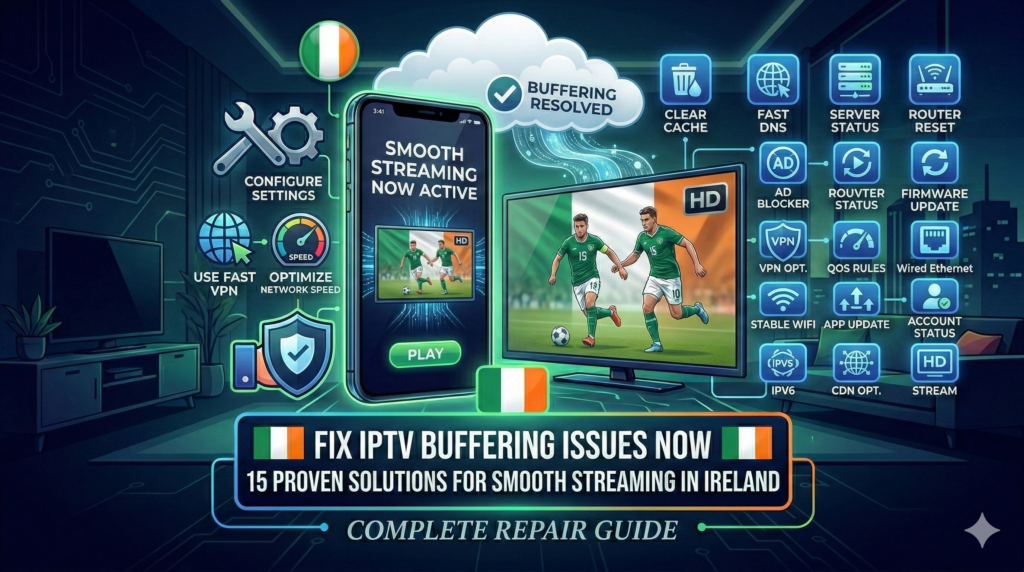
Internet-Related Issues:
- Slow internet speed
- WiFi interference or weak signal
- Network congestion
- ISP throttling
Device-Related Issues:
- Insufficient device memory
- Outdated hardware
- Too many background apps
- Overheating
App and Service Issues:
- Outdated IPTV app
- Incorrect app settings
- Server-side problems
- Peak time congestion
Home Network Issues:
- Router problems
- Too many connected devices
- Outdated router firmware
- Poor router placement
Let’s fix each of these issues one by one.
Solution 1: Test Your Internet Speed
Difficulty: Easy Time Required: 2 minutes Success Rate: Identifies the problem 60% of the time
The first step is always checking your internet speed. IPTV requires consistent bandwidth to stream smoothly.
Minimum Speed Requirements
| Quality | Minimum Speed | Recommended Speed |
|---|---|---|
| SD (480p) | 3 Mbps | 5 Mbps |
| HD (720p) | 5 Mbps | 10 Mbps |
| Full HD (1080p) | 10 Mbps | 20 Mbps |
| 4K Ultra HD | 25 Mbps | 50 Mbps |
How to Test
- On your streaming device, open a web browser
- Go to speedtest.net or fast.com
- Run the test and note your download speed
- Compare against the requirements above
What Your Results Mean
- Speed meets requirements: Problem is likely elsewhere (continue to other solutions)
- Speed below requirements: Contact your broadband provider or upgrade your plan
- Speed fluctuates wildly: Indicates connection instability (see Solutions 2-5)
Pro Tip: Test speed at different times. If it’s fast at 10am but slow at 8pm, you may have peak-time congestion issues.
Solution 2: Switch from WiFi to Ethernet
Difficulty: Easy Time Required: 5 minutes Success Rate: Very High
WiFi is convenient but inherently less stable than a wired connection. Switching to ethernet is often the single most effective fix for buffering.
Why Ethernet Is Better for IPTV
- More stable: No interference from walls, other devices, or neighbours’ WiFi
- Faster: Full speed without wireless overhead
- Lower latency: Quicker response times
- Consistent: Same performance regardless of distance from router
How to Connect via Ethernet
For Fire Stick: You’ll need an ethernet adapter (Amazon sells official ones for around €15)
- Connect the adapter to your Fire Stick
- Plug an ethernet cable from adapter to router
- Fire Stick will automatically use wired connection
For Smart TVs: Most Smart TVs have a built-in ethernet port
- Locate the ethernet port on your TV (usually on the back)
- Connect cable from TV to router
- Go to TV network settings and select “Wired Connection”
For Android Boxes: Most have built-in ethernet ports
- Connect cable directly from box to router
- Connection should be automatic
Can’t Use Ethernet?
If running a cable isn’t practical, try these alternatives:
- Powerline adapters: Use your home’s electrical wiring to carry internet signal
- WiFi extender: Place between router and streaming device
- Mesh WiFi system: Better whole-home coverage than traditional routers
Solution 3: Optimise Your WiFi Connection
Difficulty: Easy to Moderate Time Required: 10-20 minutes Success Rate: High
If you must use WiFi, optimising your wireless connection can significantly reduce buffering.
Move Closer to Your Router
The simplest fix. WiFi signal strength decreases with distance and obstacles.
- Each wall between router and device reduces signal
- Floors between levels cause major signal loss
- Keep router in central location if possible
Reduce WiFi Interference
Many household items interfere with WiFi signals:
- Microwave ovens
- Cordless phones
- Baby monitors
- Bluetooth devices
- Other WiFi networks
Fixes:
- Move router away from these devices
- Change WiFi channel to less congested one
- Switch to 5GHz band instead of 2.4GHz
Switch to 5GHz WiFi
Most modern routers broadcast on two frequencies:
| Band | Pros | Cons |
|---|---|---|
| 2.4GHz | Better range, penetrates walls | Slower, more interference |
| 5GHz | Faster speeds, less interference | Shorter range |
For IPTV streaming, 5GHz is almost always better if your device is reasonably close to the router.
How to Switch: Your router likely has separate network names for each band (e.g., “HomeWiFi” and “HomeWiFi-5G”). Connect to the 5G version.
Update Router Firmware
Outdated router firmware can cause performance issues.
- Log into your router (usually 192.168.1.1 or 192.168.0.1)
- Find the firmware update section
- Check for and install any updates
- Restart router after updating
Solution 4: Restart Your Network Equipment
Difficulty: Very Easy Time Required: 5 minutes Success Rate: Surprisingly High
The classic “turn it off and on again” works more often than you’d think. A proper restart clears temporary issues and refreshes connections.
The Correct Restart Sequence
- Turn off your streaming device (Fire Stick, TV, etc.)
- Unplug your router from power
- Unplug your modem from power (if separate from router)
- Wait 60 seconds (this is important!)
- Plug modem back in, wait for lights to stabilise
- Plug router back in, wait for lights to stabilise
- Turn on your streaming device
- Test IPTV
Why This Works
- Clears router memory and temporary files
- Resets network connections
- Forces new IP address assignment
- Clears any stuck processes
Make It a Habit: Restarting your router weekly can prevent many issues from developing.
Solution 5: Reduce Network Congestion
Difficulty: Easy Time Required: 5 minutes Success Rate: Moderate to High
Every device on your network shares the same bandwidth. Too many active devices can cause buffering.
Check What’s Using Your Network
Common bandwidth hogs:
- Other people streaming video
- Gaming consoles downloading updates
- Computers running backups
- Smart home devices
- Phones updating apps
Immediate Fixes
- Pause other downloads: Stop any active downloads or updates
- Disconnect unused devices: Temporarily disconnect devices not in use
- Close streaming on other devices: If someone else is watching Netflix, it uses the same bandwidth
- Disable auto-updates: Turn off automatic updates during viewing time
Long-Term Solutions
- Upgrade your broadband: If your household regularly uses lots of bandwidth
- Set up QoS (Quality of Service): Router feature that prioritises streaming traffic
- Create viewing schedule: Coordinate with family members
How to Set Up QoS
QoS lets you tell your router to prioritise IPTV traffic:
- Log into your router settings
- Find QoS or Traffic Management section
- Add your streaming device’s IP or MAC address
- Set it to high priority
- Save and restart router
Solution 6: Clear App Cache and Data
Difficulty: Easy Time Required: 3 minutes Success Rate: Moderate
Over time, IPTV apps accumulate cached data that can cause performance issues.
On Amazon Fire Stick
- Go to Settings > Applications > Manage Installed Applications
- Select your IPTV app
- Click “Clear Cache”
- Optionally, click “Clear Data” (you’ll need to re-enter login credentials)
- Restart the app
On Android TV / Box
- Go to Settings > Apps
- Find and select your IPTV app
- Click “Clear Cache” and “Clear Data”
- Reopen the app and log in again
On Smart TV
- Go to TV Settings > Apps
- Select the IPTV app
- Choose “Clear Cache” or “Reset App”
- Restart the app
Note: Clearing data will remove your saved settings and favourites. You’ll need to set up the app again.
Solution 7: Update Your IPTV App
Difficulty: Easy Time Required: 5 minutes Success Rate: Moderate
Outdated apps may have bugs or compatibility issues that cause buffering.
How to Update
Fire Stick:
- Go to Settings > Applications > Appstore
- Enable “Automatic Updates”
- Or manually: go to the app in your library, press menu button, select “Update”
Android:
- Open Google Play Store
- Go to “My Apps”
- Find your IPTV app and tap “Update”
Smart TV:
- Open the app store on your TV
- Go to “My Apps” or “Updates”
- Update available apps
Sideloaded Apps: Visit the app developer’s website to download the latest version, then install over the existing app.
Solution 8: Adjust Video Player Settings
Difficulty: Moderate Time Required: 5 minutes Success Rate: Moderate
Most IPTV apps have settings that affect streaming performance. Adjusting these can reduce buffering.
Buffer Size
Increasing the buffer size allows the app to download more content before playing, reducing pauses.
In IPTV Smarters Pro:
- Open Settings > Player Settings
- Increase “Buffer Size” to maximum
- Set “Buffer Length” to 5-10 seconds
In TiviMate:
- Open Settings > Playback
- Set buffer size to “Very Large”
- Enable “Buffer while playing”
Video Decoder
Switching between hardware and software decoding can fix compatibility issues.
Try:
- Switch from Hardware to Software decoder (or vice versa)
- Use “Auto” setting if available
- Test different player engines (ExoPlayer, VLC, etc.)
Stream Quality
If your internet is struggling, lowering stream quality reduces bandwidth needs.
- Look for quality settings in your IPTV app
- Try “Auto” quality first
- Manually select 720p instead of 1080p if needed
- As a last resort, select SD quality
Solution 9: Free Up Device Memory
Difficulty: Easy Time Required: 10 minutes Success Rate: Moderate
Streaming devices with low available memory often experience buffering and slowdowns.
On Fire Stick
- Go to Settings > Applications > Manage Installed Applications
- Sort by size to find the biggest apps
- Uninstall apps you don’t use
- Clear cache on remaining apps
- Aim for at least 500MB free space
On Android Devices
- Go to Settings > Storage
- Check available space
- Delete unused apps and files
- Clear system cache
- Consider factory reset if severely low
Quick Memory Tips
- Uninstall unused apps
- Delete old downloads
- Clear app caches regularly
- Avoid installing games (they use lots of space)
- Use USB storage expansion if available
Solution 10: Close Background Applications
Difficulty: Easy Time Required: 2 minutes Success Rate: Moderate
Apps running in the background consume memory and processing power.
On Fire Stick
- Press and hold the Home button
- Select “Apps” then “See All Running”
- Close unnecessary apps by selecting them and pressing “Force Stop”
On Android
- Press the Recent Apps button (square icon)
- Swipe away apps you don’t need
- Or tap “Close All”
On Smart TVs
- Go to Settings > General > Running Applications
- Force stop unnecessary apps
- Disable auto-start for apps you don’t need
Best Practice: Before starting your IPTV app, close all other applications for best performance.
Solution 11: Check for ISP Throttling
Difficulty: Moderate Time Required: 15 minutes Success Rate: Varies
Some Internet Service Providers (ISPs) throttle streaming traffic, especially during peak hours.
Signs of Throttling
- Buffering only happens at certain times (evenings/weekends)
- Speed tests show good speeds but streaming still buffers
- Regular websites work fine but video services are slow
- VPN improves streaming performance
How to Test for Throttling
- Run a speed test normally (speedtest.net)
- Connect to a VPN
- Run the speed test again
- If VPN speed is significantly better, you may be throttled
Solutions for Throttling
- Use a VPN: Encrypts traffic so ISP can’t identify streaming
- Contact your ISP: Ask if they throttle streaming traffic
- Switch providers: Choose an ISP that doesn’t throttle
- Off-peak viewing: Watch during non-peak hours
Solution 12: Try a Different DNS Server
Difficulty: Moderate Time Required: 10 minutes Success Rate: Moderate
Your DNS server resolves website addresses. Slow DNS can cause connection delays.
Recommended DNS Servers
| Provider | Primary DNS | Secondary DNS |
|---|---|---|
| 8.8.8.8 | 8.8.4.4 | |
| Cloudflare | 1.1.1.1 | 1.0.0.1 |
| OpenDNS | 208.67.222.222 | 208.67.220.220 |
How to Change DNS on Fire Stick
- Go to Settings > Network
- Select your WiFi network
- Press the menu button for “Advanced”
- Enter DNS manually
- Restart device
How to Change DNS on Router
Changing DNS on your router applies to all devices:
- Log into router settings
- Find DNS or Internet settings
- Change DNS servers to preferred choice
- Save and restart router
Solution 13: Check Your IPTV Provider’s Server Status
Difficulty: Easy Time Required: 5 minutes Success Rate: Identifies external issues
Sometimes the problem isn’t on your end. IPTV servers can experience issues too.
Signs of Server Problems
- All channels are buffering, not just some
- Problem started suddenly with no changes on your end
- Other users report similar issues
- Provider has acknowledged problems
What to Do
- Contact your IPTV provider via WhatsApp or support channel
- Ask if there are known server issues
- Check if specific server regions are affected
- Request alternative server connection if available
KiwiSun.ie Tip: Our support team is available 24/7 via WhatsApp. If you’re experiencing widespread buffering, message us to check server status.
Solution 14: Use a VPN Strategically
Difficulty: Moderate Time Required: 15 minutes Success Rate: Varies
A VPN can help in some situations but hurt in others.
When VPN Helps
- Your ISP is throttling streaming traffic
- You need to bypass geographic restrictions
- You want added privacy
When VPN Hurts
- VPN server is slow or congested
- VPN adds latency to your connection
- Free VPNs with bandwidth limits
VPN Best Practices for IPTV
- Choose a fast VPN: NordVPN, ExpressVPN, Surfshark are recommended
- Select nearby server: Connect to a server close to your location
- Use WireGuard protocol: Fastest VPN protocol available
- Test with and without: See if VPN improves or worsens performance
Solution 15: Upgrade Your Hardware
Difficulty: Varies Time Required: Varies Success Rate: High for old devices
Sometimes your device is simply too old or underpowered for smooth IPTV streaming.
Signs You Need New Hardware
- Device is more than 4-5 years old
- Constant overheating
- Apps crash frequently
- Device feels sluggish in general
- Buffering persists despite trying all other solutions
Recommended Devices for IPTV in 2025
Budget (Under €40):
- Amazon Fire Stick Lite
- Xiaomi Mi TV Stick
Mid-Range (€40-80):
- Amazon Fire Stick 4K Max (Our Recommendation)
- Chromecast with Google TV
High-End (€100+):
- Nvidia Shield TV Pro
- Apple TV 4K
- Formuler Z11 Pro
Fire Stick 4K Max is our top recommendation for most Irish IPTV users. It offers excellent performance, 4K support, and good value.
Quick Troubleshooting Checklist
If you’re experiencing buffering right now, run through this quick checklist:
- Restart the IPTV app
- Close all other apps
- Check internet speed (need 10+ Mbps for HD)
- Restart streaming device
- Restart router and modem
- Try ethernet instead of WiFi
- Clear app cache
- Try a different channel (is it just one channel?)
- Check if provider has server issues
- Try at a different time (peak vs off-peak)
When to Contact Your IPTV Provider
Contact your IPTV provider’s support if:
- You’ve tried all solutions with no improvement
- Buffering started suddenly with no changes on your end
- Only certain channels are affected
- Your subscription may have expired
- You need alternative server connections
A good IPTV provider like KiwiSun.ie offers 24/7 WhatsApp support to help troubleshoot issues quickly.
Prevention: Keeping Buffering Away
Once you’ve fixed your buffering issues, these habits will help prevent future problems:
Weekly Maintenance
- Restart your router once per week
- Clear app cache weekly
- Check for app updates
Monthly Maintenance
- Update router firmware
- Review connected devices (remove unused ones)
- Test internet speed
General Best Practices
- Use ethernet whenever possible
- Keep streaming device well-ventilated
- Close apps when not in use
- Maintain at least 500MB free storage
- Keep your IPTV app updated
Conclusion
Buffering is frustrating, but it’s rarely unfixable. In most cases, the solutions above will resolve your issues:
Most Effective Fixes:
- Switch to ethernet connection
- Restart all network equipment
- Clear app cache and data
- Upgrade to faster broadband
- Use 5GHz WiFi if ethernet isn’t possible
Quick Wins:
- Restart everything (device, router, modem)
- Close background apps
- Clear cache
Long-Term Solutions:
- Upgrade your hardware
- Improve your internet plan
- Use ethernet connection
Remember, smooth IPTV streaming requires a stable internet connection of at least 10 Mbps for HD content. If your broadband doesn’t meet this requirement, upgrading your plan should be your first priority.
Still experiencing issues? KiwiSun.ie customers can contact our 24/7 WhatsApp support for personalised troubleshooting assistance. We’re here to help you enjoy buffer-free streaming!
Published: March 2025 Category: Troubleshooting Reading Time: 15 minutes