Introduction
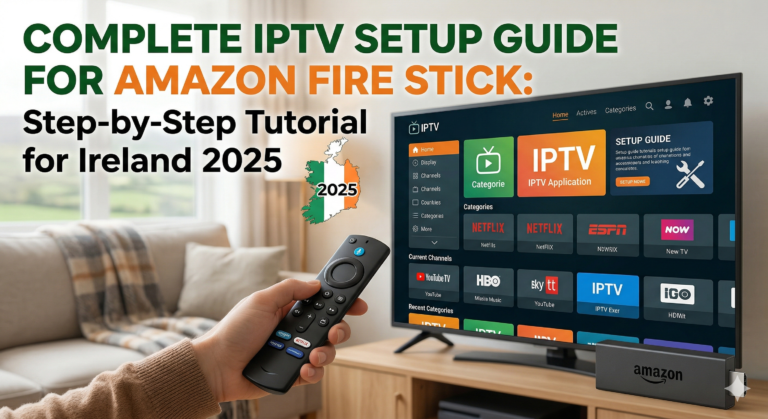
The Amazon Fire Stick is by far the most popular device for watching IPTV in Ireland. It’s affordable, portable, and powerful enough to stream thousands of channels in stunning HD and 4K quality.
But if you’ve never set up IPTV before, the process might seem intimidating. Don’t worry — this step-by-step guide will walk you through everything, from unboxing your Fire Stick to watching your first channel.
By the end of this tutorial, you’ll have a fully working IPTV setup ready to stream over 1,000 channels.
What You’ll Need
Before we begin, make sure you have:
- Amazon Fire Stick (any model works, but 4K or 4K Max recommended)
- TV with HDMI port
- WiFi connection (minimum 10 Mbps, 25+ Mbps for 4K)
- Amazon account (free to create)
- IPTV subscription (or free trial from KiwiSun.ie)
- 10-15 minutes of your time
That’s it! Let’s get started.
Part 1: Setting Up Your Fire Stick
If your Fire Stick is brand new, follow these steps. If it’s already set up, skip to Part 2.
Step 1: Connect the Fire Stick to Your TV
- Plug the Fire Stick into an available HDMI port on your TV
- Connect the USB power cable to the Fire Stick
- Plug the power adapter into a wall outlet (using the TV’s USB port for power isn’t recommended — it may not provide enough power)
- Turn on your TV and select the correct HDMI input
Step 2: Pair the Remote
- The remote should pair automatically
- If not, press and hold the Home button for 10 seconds
- The Fire Stick will detect and pair with the remote
Step 3: Connect to WiFi
- Select your WiFi network from the list
- Enter your WiFi password using the on-screen keyboard
- Wait for connection to establish
- Fire Stick will download any available updates (this may take a few minutes)
Step 4: Sign In to Amazon
- Sign in with your existing Amazon account, or
- Create a new account (it’s free)
- You can also sign in via amazon.com/code on your phone or computer
Step 5: Complete Initial Setup
- Choose whether to enable parental controls
- Select which apps to install (you can skip this)
- Wait for setup to complete
Your Fire Stick is now ready. Time to install IPTV!
Part 2: Enabling Developer Options
IPTV apps aren’t available in the standard Amazon App Store, so we need to enable installation from external sources. This is completely safe and takes just a minute.
Step 1: Open Settings
- From the Fire Stick home screen, navigate to the right
- Select the Settings icon (gear/cog symbol)
Step 2: Navigate to My Fire TV
- In Settings, scroll right and select My Fire TV
- This section contains device options and developer settings
Step 3: Enable Developer Options
For newer Fire Stick models (2022 and later):
- Select My Fire TV
- Click on About
- Click on your Fire TV Stick name 7 times rapidly
- A message will appear saying “You are now a developer!”
- Go back to My Fire TV
- You’ll now see Developer Options — select it
For older Fire Stick models:
Developer Options may already be visible:
- Select My Fire TV
- Select Developer Options
Step 4: Enable Apps from Unknown Sources
- In Developer Options, find Apps from Unknown Sources or Install unknown apps
- Turn this ON
- A warning message will appear — select Turn On
- If you see individual apps listed, enable for Downloader (we’ll install this next)
Your Fire Stick can now install apps from outside the Amazon Store.
Part 3: Installing the Downloader App
Downloader is a free app that lets you download and install IPTV apps. It’s available directly in the Amazon App Store.
Step 1: Open the App Store
- Return to the Fire Stick home screen
- Select Find (magnifying glass icon)
- Select Search
Step 2: Search for Downloader
- Type “Downloader” using the on-screen keyboard
- The orange Downloader app by AFTVnews will appear in results
- Select it
Step 3: Install Downloader
- Click Get or Download
- Wait for installation to complete
- Click Open to launch, or find it later in Your Apps
Downloader is now installed. This is the app we’ll use to install IPTV players.
Part 4: Installing IPTV Smarters Pro
IPTV Smarters Pro is our recommended app for most users. It’s user-friendly, reliable, and works perfectly with KiwiSun.ie subscriptions.
Step 1: Open Downloader
- Launch the Downloader app
- If prompted to allow access, select Allow
- You’ll see a URL entry field
Step 2: Enter the Download URL
- In the URL field, type: firesticktricks.com/smarter (This is a shortcut URL that redirects to the official download)
- Click Go
- The download will begin automatically
Alternative direct URL: You can also use the official IPTV Smarters website download link if the shortcut doesn’t work.
Step 3: Install the App
- Once downloaded, an installation prompt appears
- Click Install
- Wait for installation to complete
- Click Done (not Open — we’ll delete the file first)
Step 4: Delete the Installation File
- Downloader will ask if you want to delete the APK file
- Select Delete — this saves storage space
- Confirm by clicking Delete again
Step 5: Open IPTV Smarters Pro
- Return to Fire Stick home screen
- Go to Your Apps & Channels
- Scroll to find IPTV Smarters Pro
- Select it to open
Tip: Long-press on the app icon and select “Move to front” for easy access.
Part 5: Setting Up IPTV Smarters Pro
Now we’ll connect the app to your IPTV subscription.
Step 1: Accept Terms
- When IPTV Smarters Pro opens, you’ll see Terms of Use
- Read through them
- Click Accept to continue
Step 2: Choose Login Method
You’ll see options for adding your subscription. The most common are:
- Login with Xtream Codes API (Recommended)
- Load Your Playlist or File/URL
Select Login with Xtream Codes API for the best experience.
Step 3: Enter Your Subscription Details
Your IPTV provider (KiwiSun.ie) will give you these credentials:
- Any Name: Enter anything you like (e.g., “KiwiSun IPTV”)
- Username: Your subscription username
- Password: Your subscription password
- Server URL: The server address (e.g., http://server.example.com:port)
Example:
- Any Name: KiwiSun IPTV
- Username: john_dublin_12345
- Password: xK9#mP2$vL
- Server URL: http://iptv.kiwisun.ie:8080
Step 4: Add User
- Double-check all details are correct
- Click Add User
- The app will connect to the server
- Wait for channel data to load (this may take 1-2 minutes)
Step 5: Start Watching!
- You’ll see the main menu with options like:
- Live TV
- Movies
- Series
- Catch Up
- Recordings
- Select Live TV
- Browse channel categories
- Click any channel to start watching
Congratulations! You’re now streaming IPTV on your Fire Stick!
Part 6: Alternative App — Installing TiviMate
TiviMate offers a more polished, TV-optimised experience. Many users prefer it over IPTV Smarters.
Step 1: Download TiviMate
- Open Downloader
- Enter URL: tivimate.com or use a direct APK link
- Navigate to the download section
- Download the latest version
Step 2: Install TiviMate
- Click Install when prompted
- Wait for installation
- Click Done
- Delete the APK file
Step 3: Set Up TiviMate
- Open TiviMate from your apps
- Select Add Playlist
- Choose Xtream Codes Login
- Enter your subscription details:
- Server address
- Username
- Password
- Click Next
- Wait for playlist to load
- Assign playlist to “Playlist 1”
- Click Done
Step 4: Optional — Premium Upgrade
TiviMate free version works well, but Premium (€4.99/year) adds:
- Multiple playlists
- Recording (DVR)
- Customisation options
- No restrictions on features
You can upgrade from within the app using your Google account.
Part 7: Optimising Your IPTV Experience
A few tweaks will ensure the best possible streaming experience.
Organise Your Channels
Create Favourites:
- While watching or browsing channels
- Press the menu button on your remote
- Select “Add to Favourites”
- Access favourites from the main menu
Hide Unwanted Categories:
- Go to app Settings
- Find Channel Groups or Categories
- Disable groups you don’t watch
Adjust Video Settings
Buffer Settings (IPTV Smarters):
- Go to Settings > Player Settings
- Set Buffer Size to Maximum
- Enable Hardware Decoding
Player Selection:
- Try different video players (ExoPlayer, VLC, System)
- If one causes issues, switch to another
Set Up Parental Controls
- Go to app Settings
- Find Parental Controls
- Set a PIN
- Select which channels/categories to lock
Part 8: Fire Stick Tips and Tricks
Speed Up Your Fire Stick
Disable Unused Features:
- Settings > Preferences > Privacy Settings
- Turn OFF “Device Usage Data”
- Turn OFF “Collect App Usage Data”
Disable Video Autoplay:
- Settings > Preferences > Featured Content
- Turn OFF “Allow Video Autoplay”
- Turn OFF “Allow Audio Autoplay”
Free Up Storage Space
- Settings > Applications > Manage Installed Applications
- Clear cache on apps you use
- Uninstall apps you don’t need
Improve WiFi Connection
- Use 5GHz WiFi if available
- Move Fire Stick closer to router
- Consider an ethernet adapter for best results
Useful Remote Shortcuts
| Button Combination | Action |
|---|---|
| Home (long press) | Quick access menu |
| Play/Pause + Select | Take screenshot |
| Rewind + Fast Forward | Restart Fire Stick |
| Back (long press) | Force close app |
Part 9: Troubleshooting Common Setup Issues
“Unable to Connect to Server”
Causes:
- Incorrect server URL
- Wrong username/password
- Subscription expired
Solutions:
- Double-check all credentials (watch for typos)
- Ensure http:// is included in server URL
- Verify your subscription is active
- Try without the port number, then with it
“No Channels Loading”
Causes:
- Playlist still downloading
- Server issue
- Internet connection problem
Solutions:
- Wait 2-3 minutes for initial load
- Check your internet connection
- Restart the app
- Contact your IPTV provider
“App Crashes or Freezes”
Causes:
- Insufficient memory
- App needs update
- Corrupted installation
Solutions:
- Clear app cache (Settings > Applications)
- Uninstall and reinstall the app
- Restart Fire Stick
- Free up storage space
“Buffering on All Channels”
Causes:
- Slow internet
- WiFi issues
- Server congestion
Solutions:
- Run speed test (need 10+ Mbps)
- Restart router
- Use ethernet adapter
- Try different server (ask your provider)
“Can’t Install Apps from Unknown Sources”
Causes:
- Developer options not enabled
- Setting in wrong location
Solutions:
- Follow Part 2 instructions carefully
- On new Fire Sticks, you must click device name 7 times first
- Enable for “Downloader” app specifically
Part 10: Keeping Your Setup Updated
Update Fire Stick Firmware
- Settings > My Fire TV > About
- Check for Updates
- Install any available updates
- Fire Stick usually auto-updates overnight
Update IPTV Apps
IPTV apps don’t auto-update since they’re sideloaded. Check monthly for updates:
- Open Downloader
- Enter the same URL used for original installation
- Download latest version
- Install over existing app (settings preserved)
Check Subscription Status
- Mark your subscription end date in calendar
- Renew before expiration to avoid interruption
- Contact provider if credentials stop working
Frequently Asked Questions
Is installing IPTV apps on Fire Stick safe?
Yes, when you download apps from trusted sources. The apps we recommend (IPTV Smarters, TiviMate) are well-established and widely used. Always download from official sources.
Will this void my Fire Stick warranty?
No. Enabling developer options and installing apps is officially supported by Amazon. It doesn’t void any warranty.
Can I use multiple IPTV apps?
Yes! You can install several IPTV apps and use the same subscription in each. This lets you try different apps to find your favourite.
How many devices can use my subscription?
Most IPTV subscriptions allow one device at a time. Check with your provider for multi-device options if you need to watch on multiple screens simultaneously.
Can I take my Fire Stick travelling?
Yes! Your Fire Stick works anywhere with internet and a TV with HDMI. Just plug it in and connect to WiFi. Note that some channels may be geo-restricted outside Ireland.
Do I need a VPN?
A VPN isn’t required for IPTV to work. Some users prefer one for privacy, but it’s optional. If you use a VPN, choose a fast one to avoid buffering.
What if I forget my IPTV credentials?
Contact your IPTV provider. KiwiSun.ie customers can reach us via WhatsApp anytime, and we’ll resend your details.
Quick Reference Card
Essential Information to Save:
IPTV Provider: KiwiSun.ie
Server URL: [Your server address]
Username: [Your username]
Password: [Your password]
Support: WhatsApp +44 7988 548254
Download URLs:
- Downloader app: Amazon App Store
- IPTV Smarters: firesticktricks.com/smarter
- TiviMate: tivimate.com
Fire Stick Settings Path:
- Developer Options: Settings > My Fire TV > Developer Options
- App Management: Settings > Applications > Manage Installed Applications
- Network: Settings > Network
Conclusion
Setting up IPTV on your Amazon Fire Stick is straightforward once you know the steps:
- Set up Fire Stick and connect to WiFi
- Enable Developer Options for app installation
- Install Downloader from Amazon App Store
- Download IPTV Smarters (or TiviMate)
- Enter your subscription credentials
- Start watching 1,000+ channels!
The entire process takes about 10-15 minutes, and you only need to do it once. After setup, simply turn on your TV and start streaming.
If you run into any issues, refer to the troubleshooting section above or contact your IPTV provider for assistance.
Don’t have an IPTV subscription yet? Get your FREE 24-hour trial from KiwiSun.ie! Message us on WhatsApp and we’ll send your credentials in minutes. Test our service with over 1,000 channels before committing.
Published: March 2025 Category: Setup Guides Reading Time: 18 minutes Devices: Amazon Fire Stick (all models)